




WhatsApp configuration
Learn how to link Serviceform with WhatsApp Business.
Basic WhatsApp setup
Make sure that you have the Phone number ID, Business ID, and Access token ID, refer to this article to know more about these credentials. Let’s get started:
1. In the Dashboard, navigate to Settings -> Social Inbox -> WhatsApp. Click on Add account.
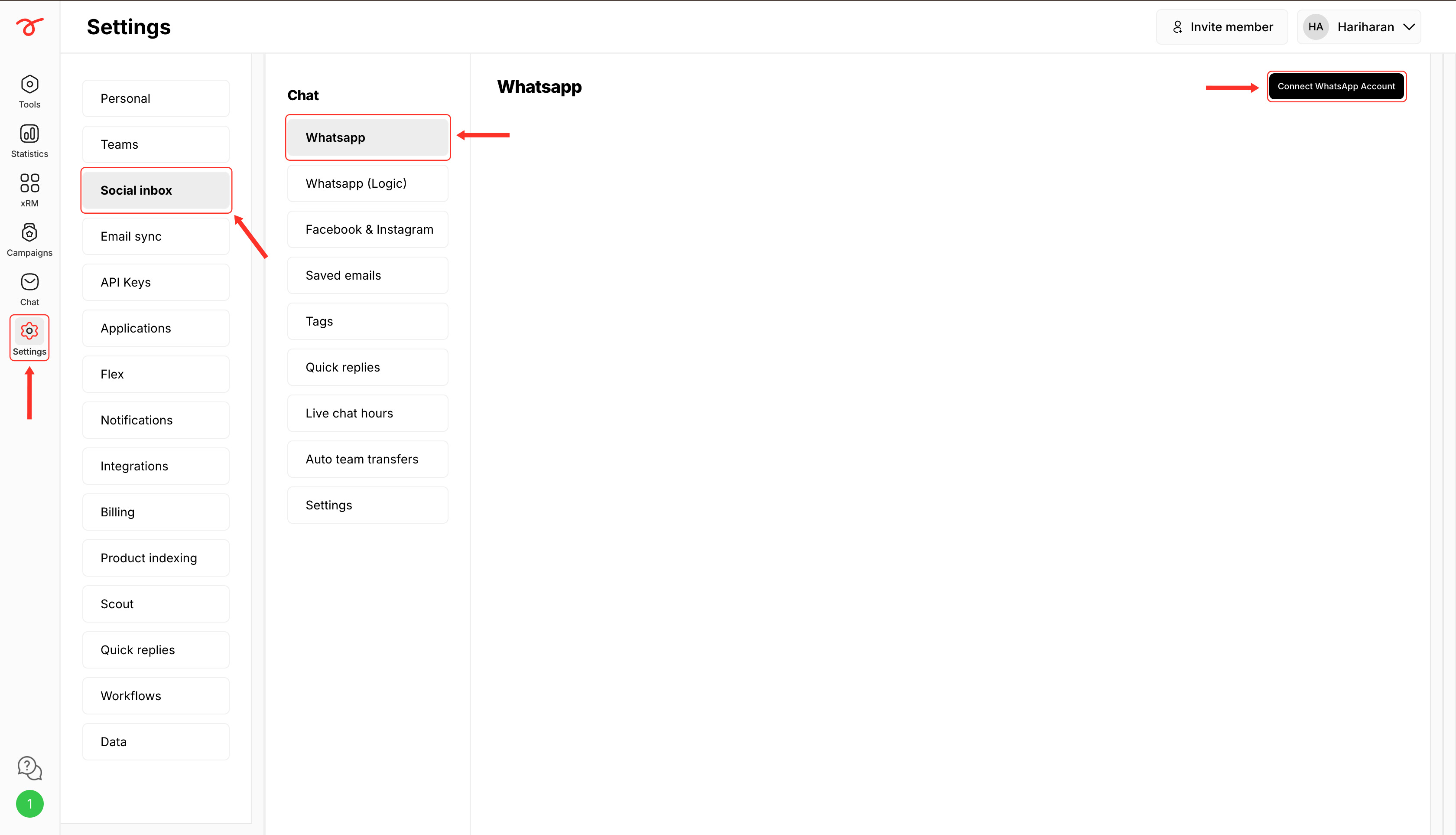
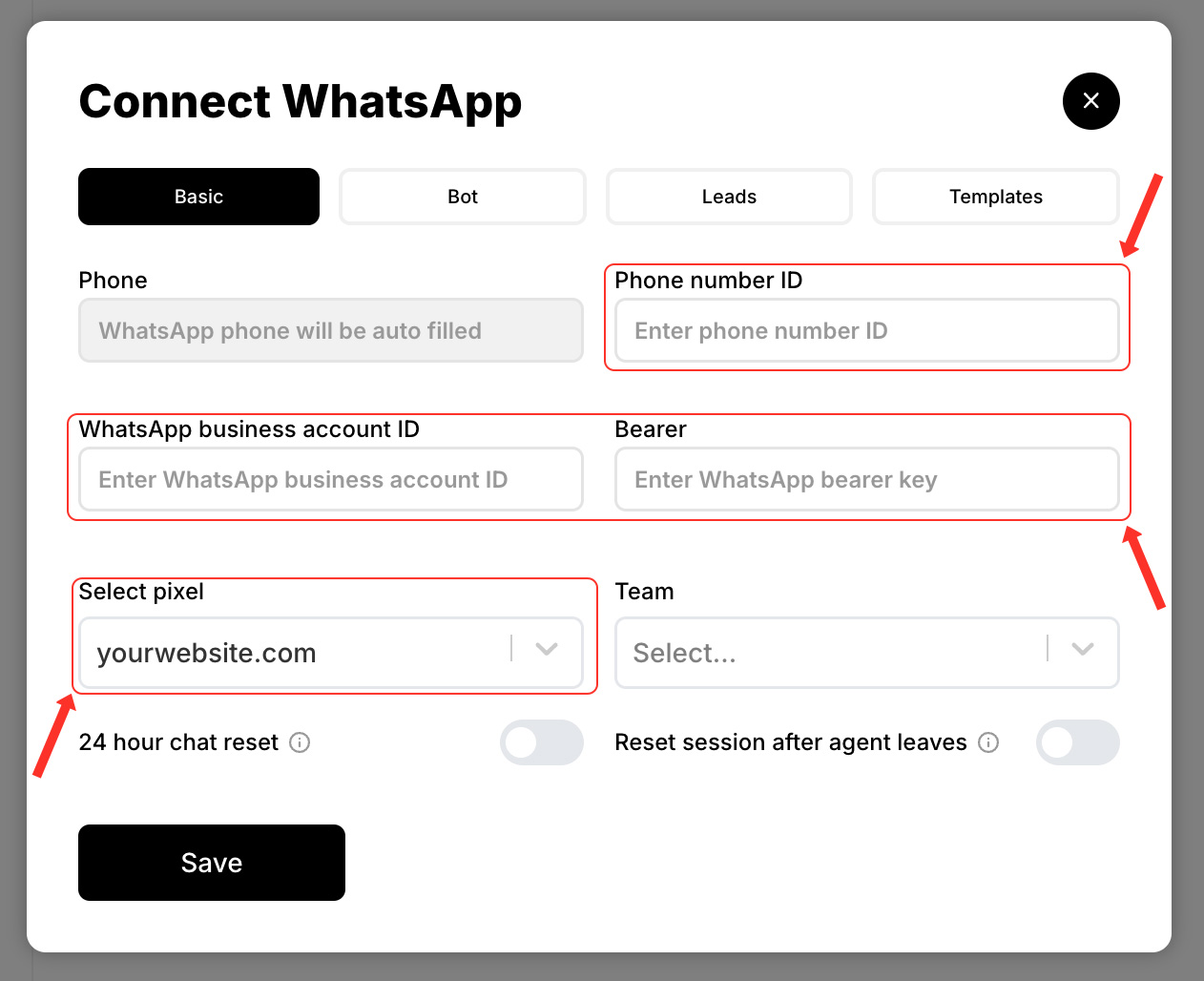
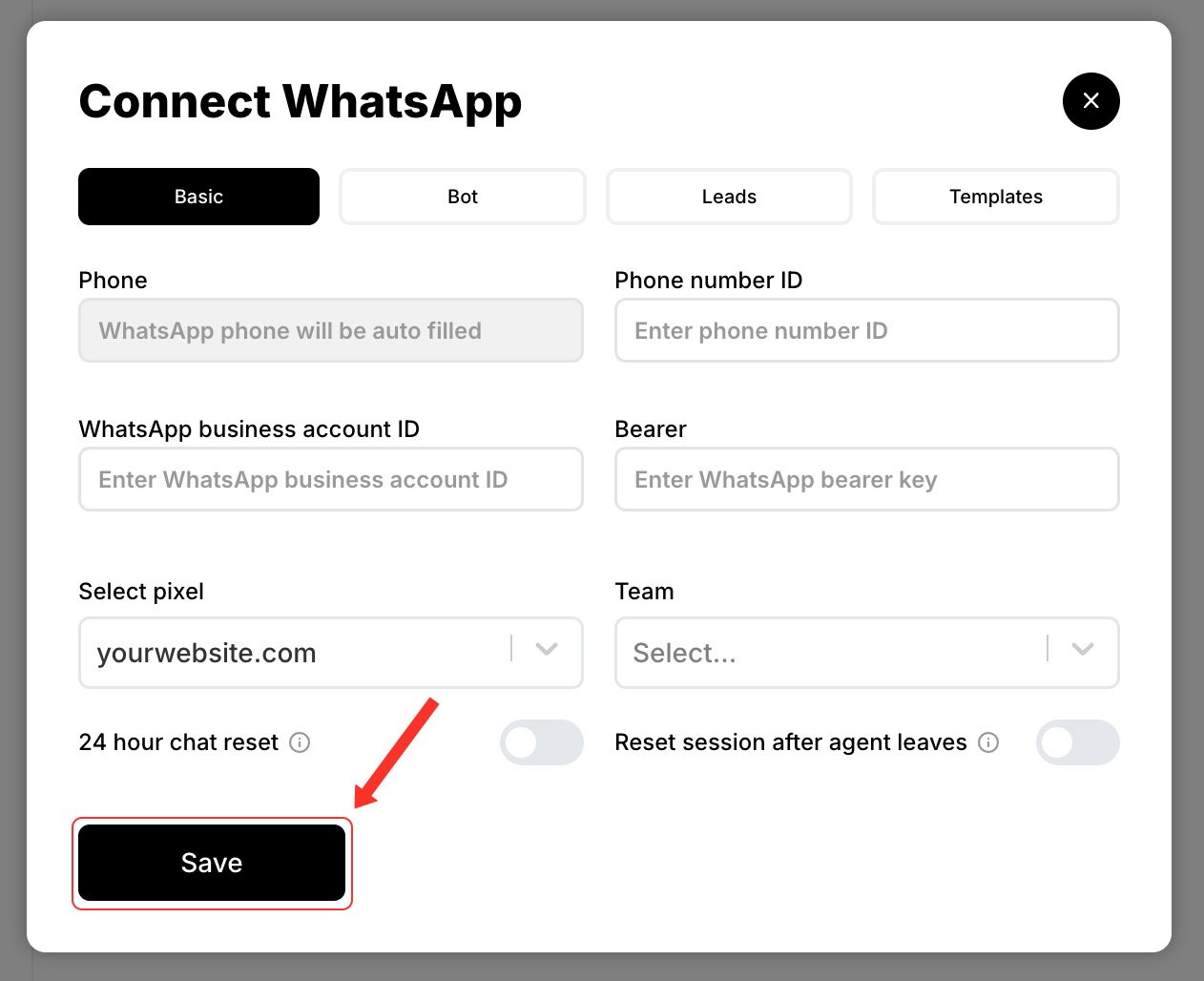
2. Enter the Phone number ID, Business ID, and Bearer token (Access token). Select the pixel to classify the statistics of the WhatsApp bot under a specific pixel ID.
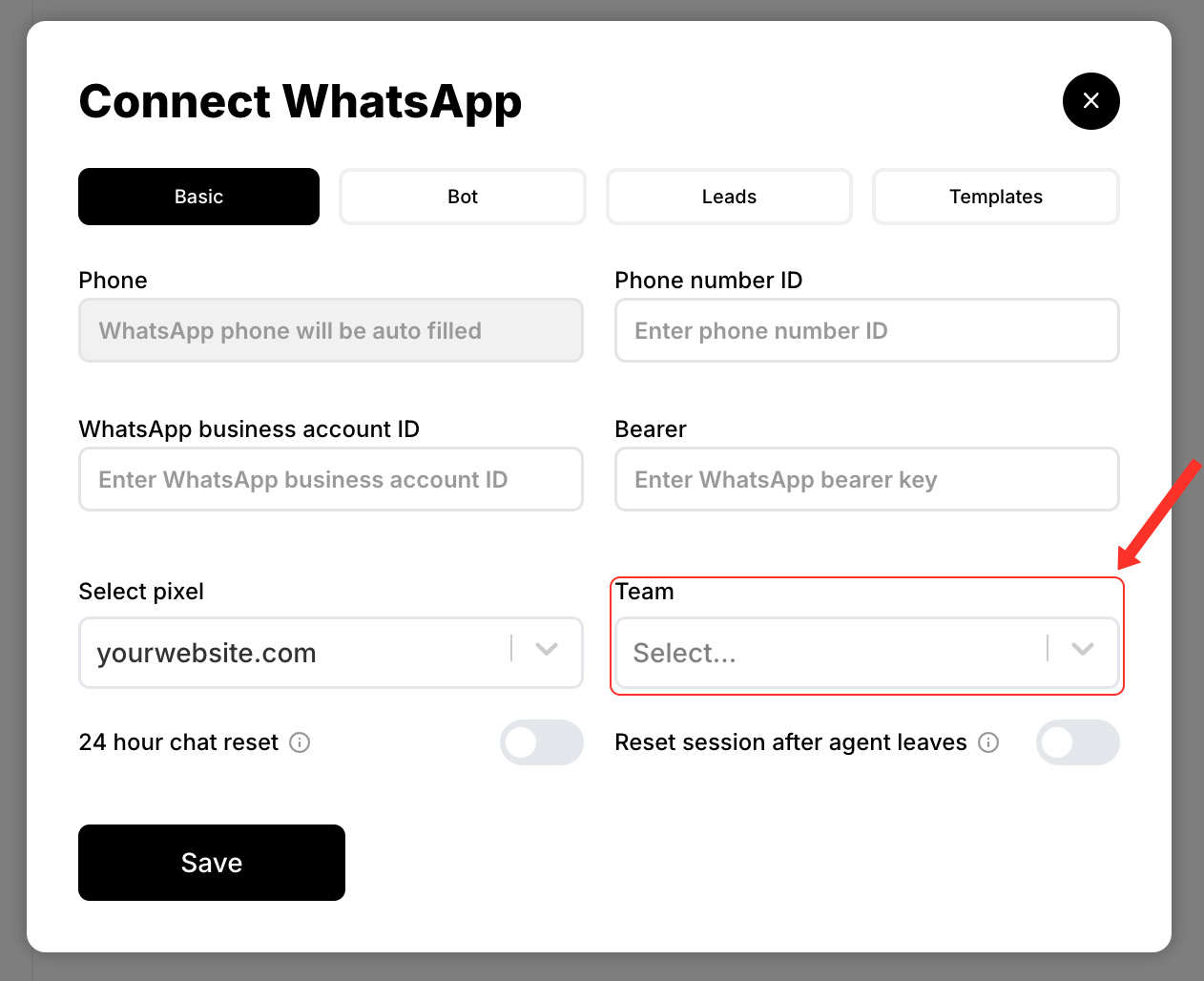
3. Select a team to which you want to assign the incoming Whatsapp messages.
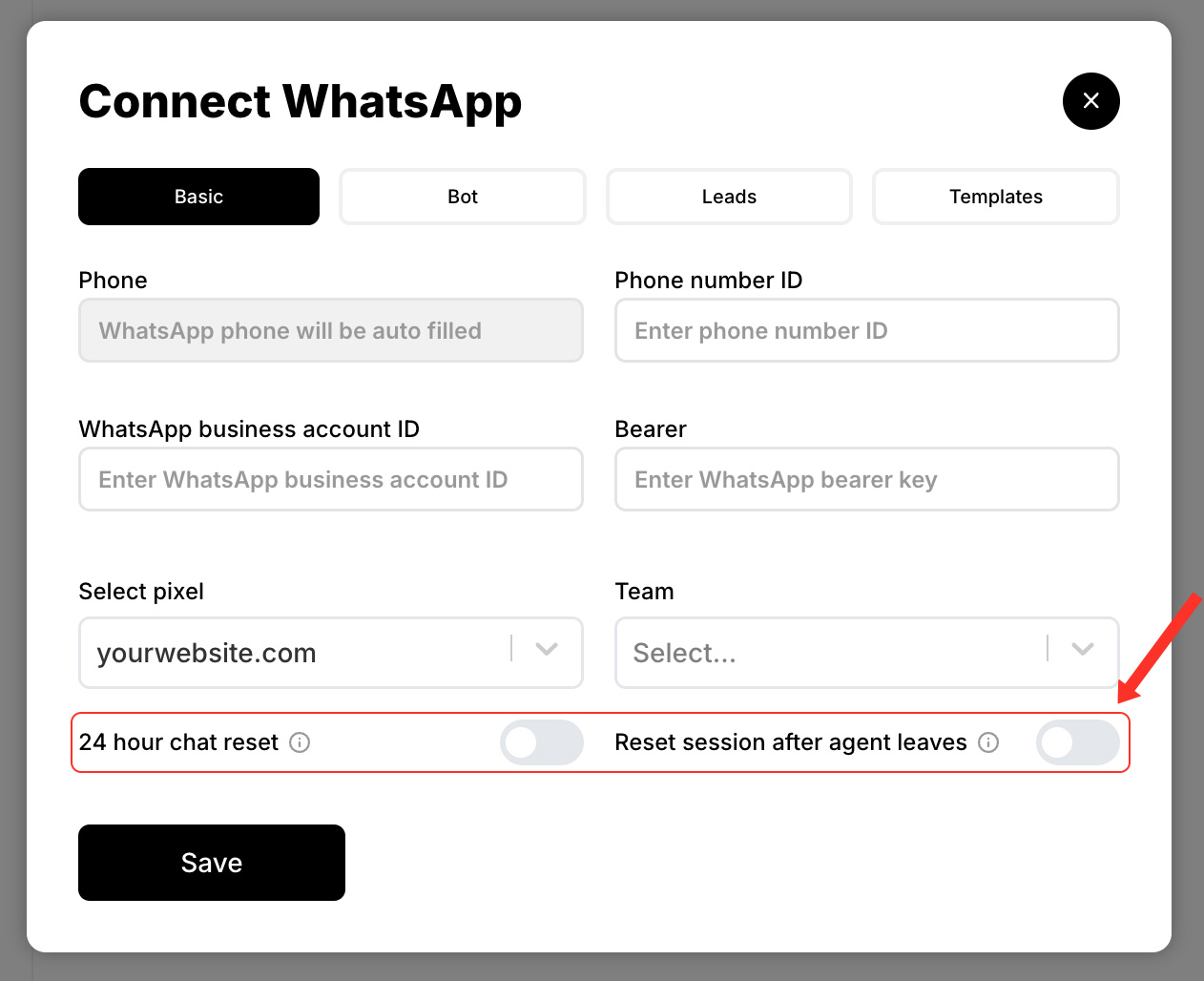
4. Enabling 24 hour chat reset would create a new chat if the customer messages after 24 hours and enabling Reset session after agent leaves would also create a new chat if the customer messages after the agent has left the chat.
5. Click on Save.
Now, you will be able to find the new WhatsApp configuration on your Dashboard. In order to confirm that you have set it up correctly, click on the edit icon:
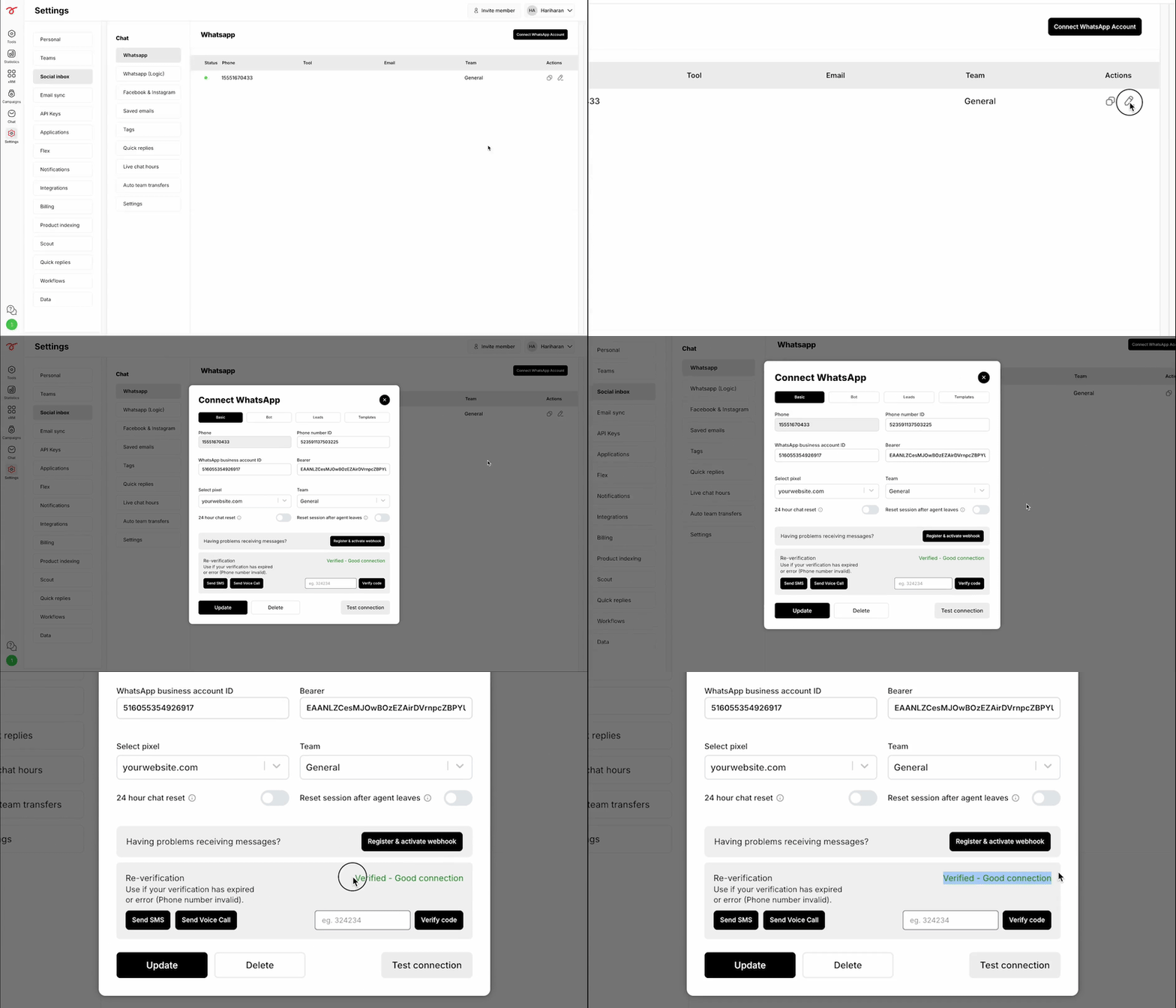
Integrating the WhatsApp bot to the WhatsApp business
Link your WhatsApp chatbot to the WhatsApp business account by following the steps below.
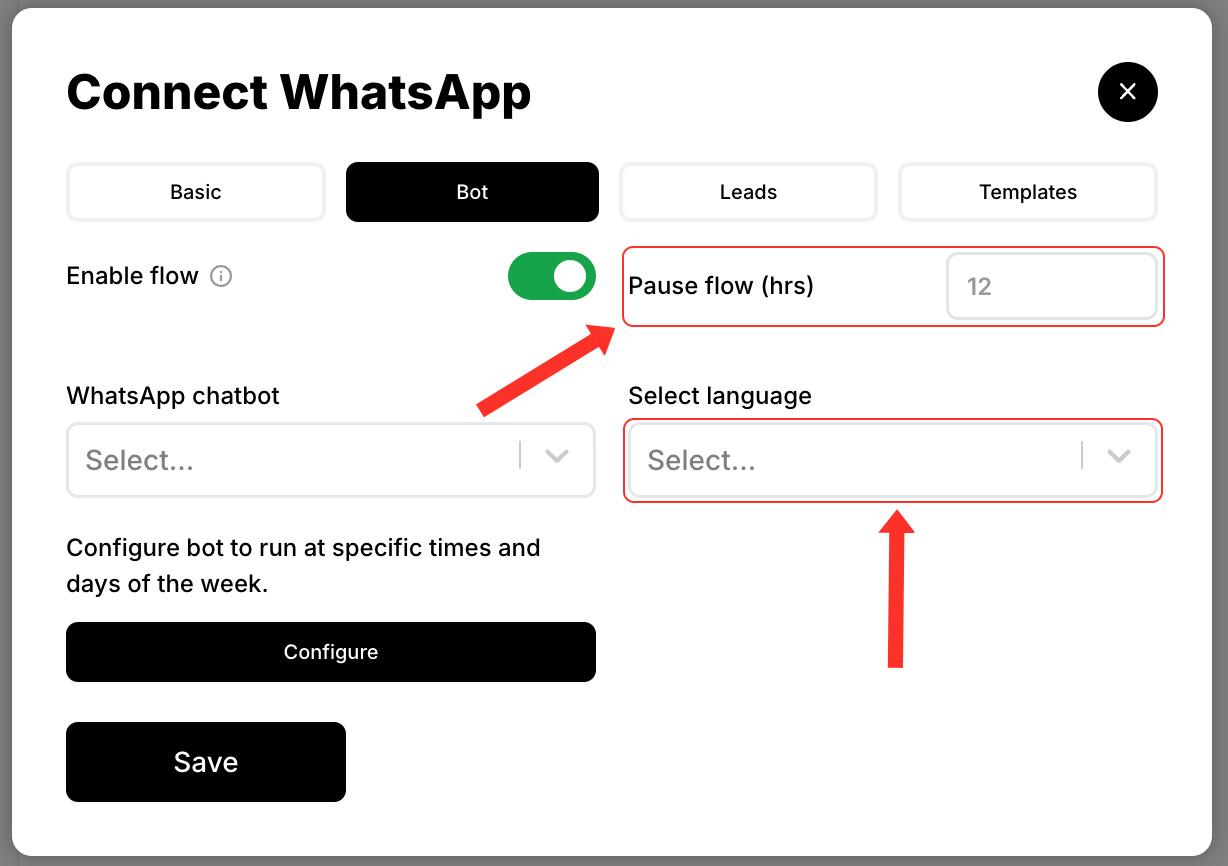
1. Click on Bot and enable the flow.
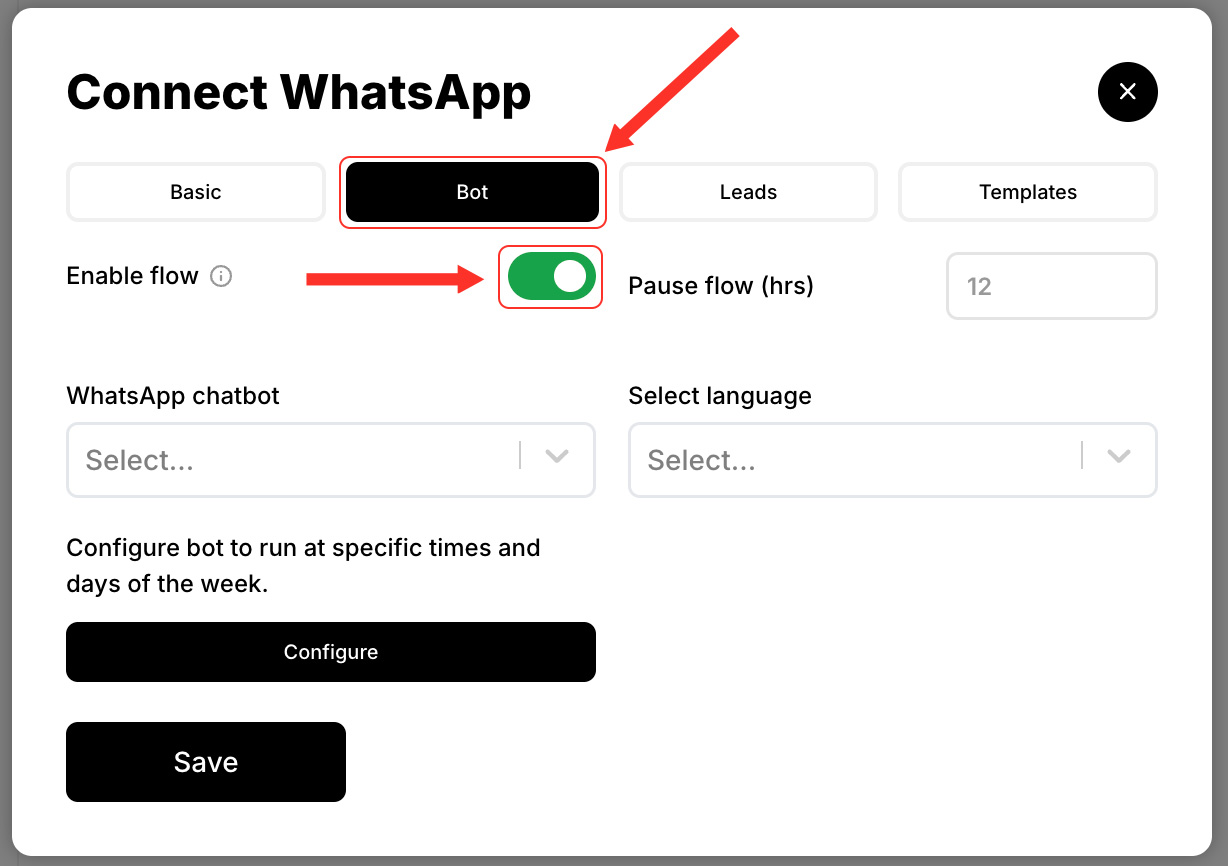
2. Select the WhatsApp bot you have built previously.
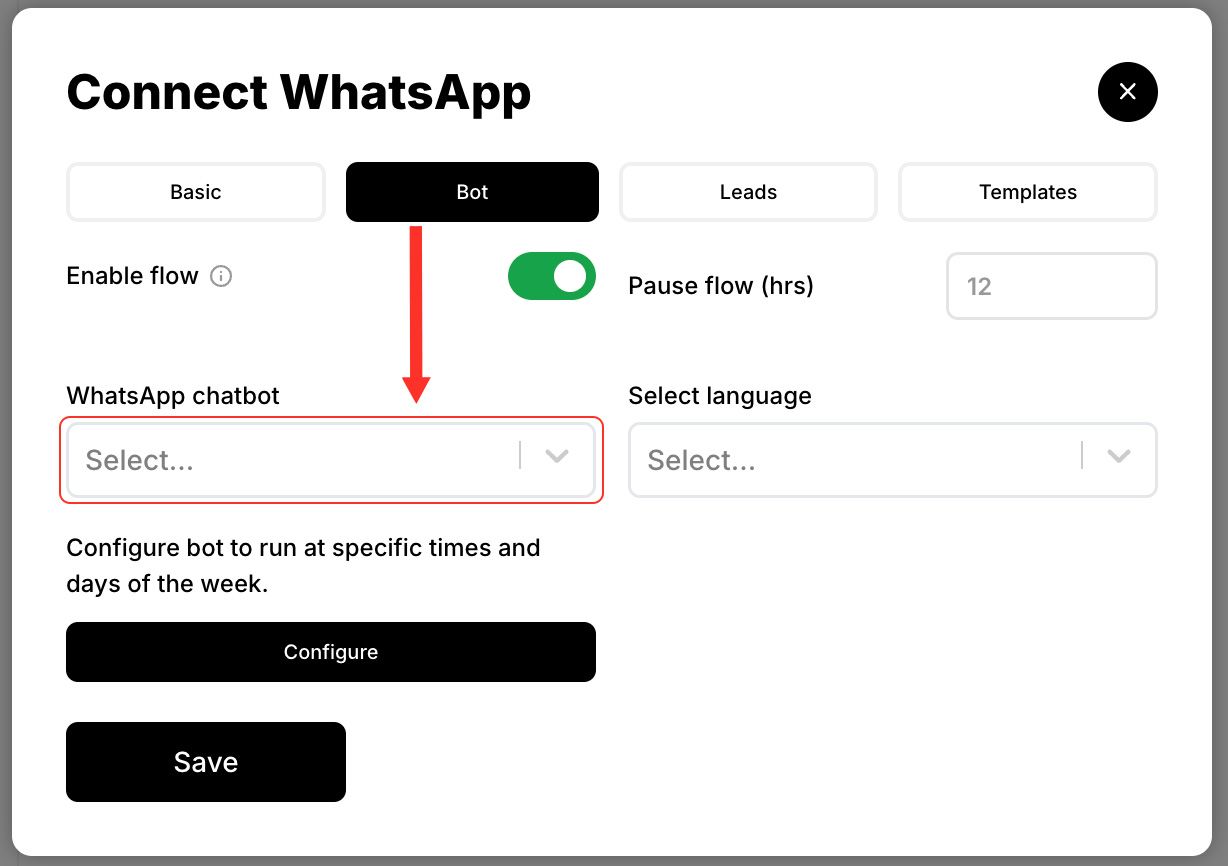
3. Specify the number of hours, since the time the agent left, after which you want to resume the chatbot flow. Select the language.
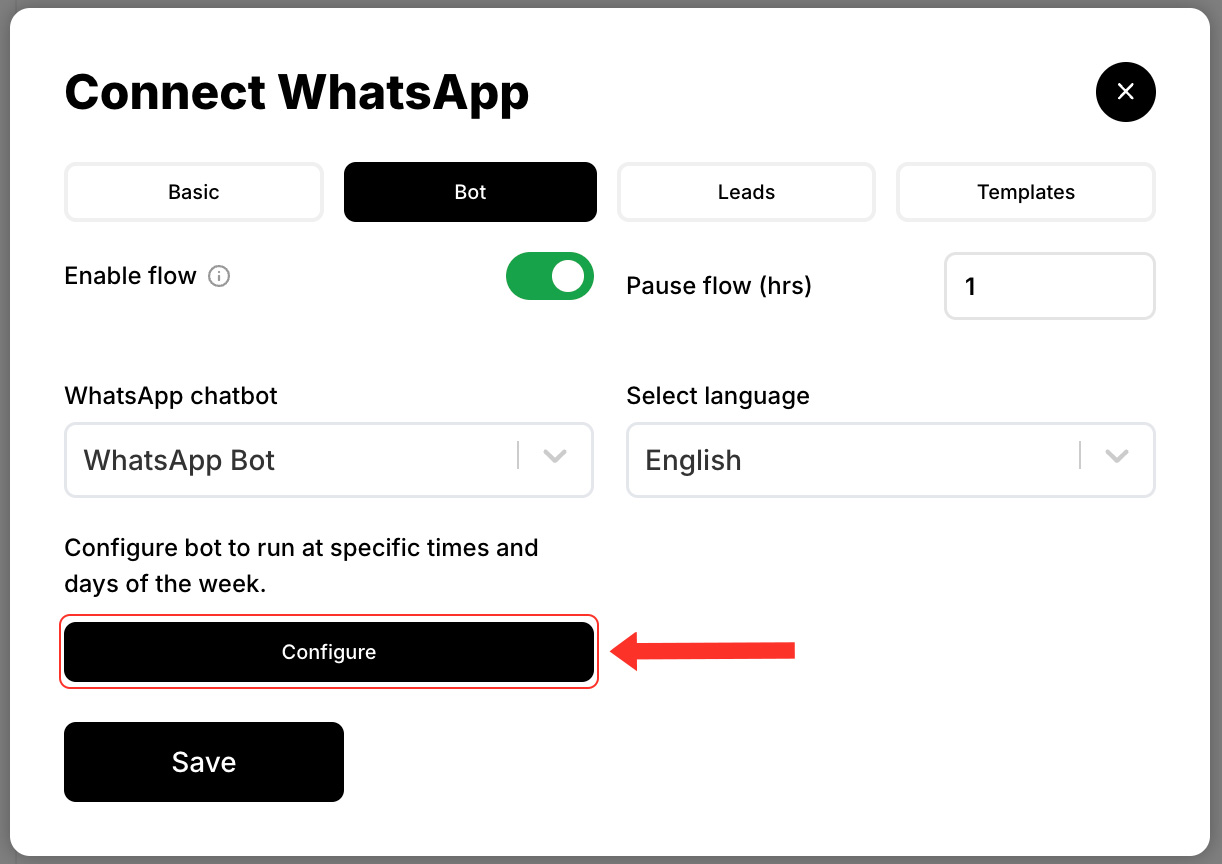
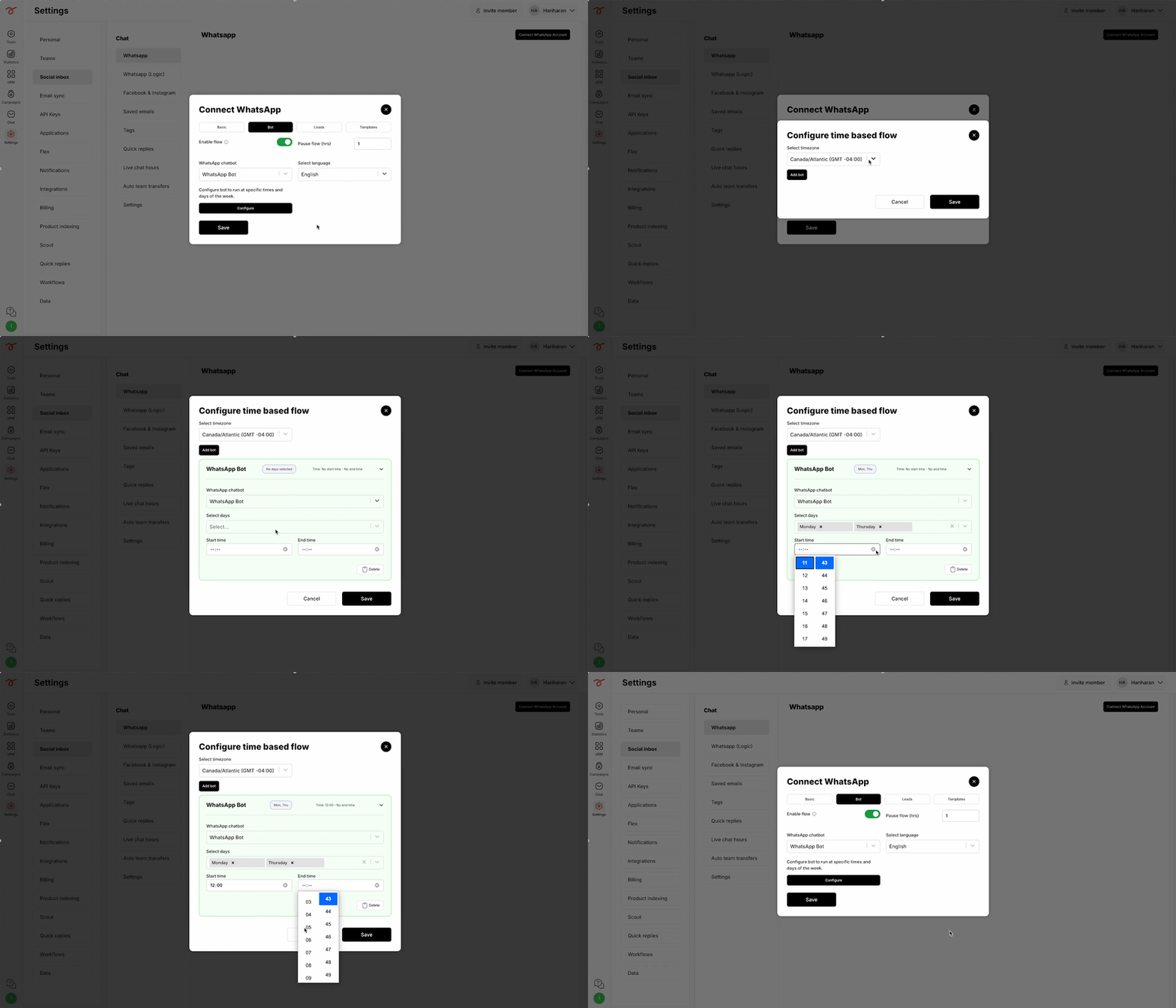
You can also enable different WhatsApp chatbots in different time frames based on your requirement:
4. Click on Configure.
5. Select the time zone, select the WhatsApp bot and set the time frame within which you want to initiate the bot. Finally, click on Save.
Send leads from WhatsApp bot to E-Mail
The details collected from the customer can be sent to you E-Mail as a lead from the WhatsApp bot with specific conditions. Here is how you can do it :
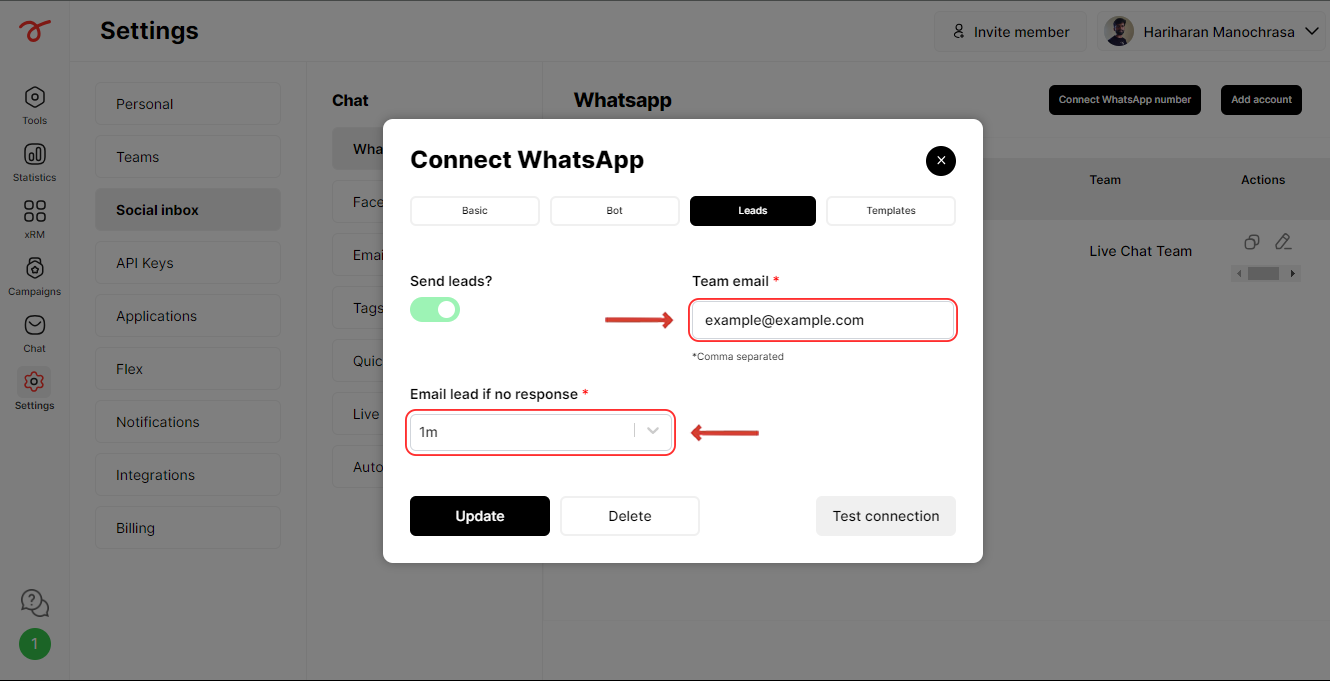
1. Click on Leads and enable the toggle.
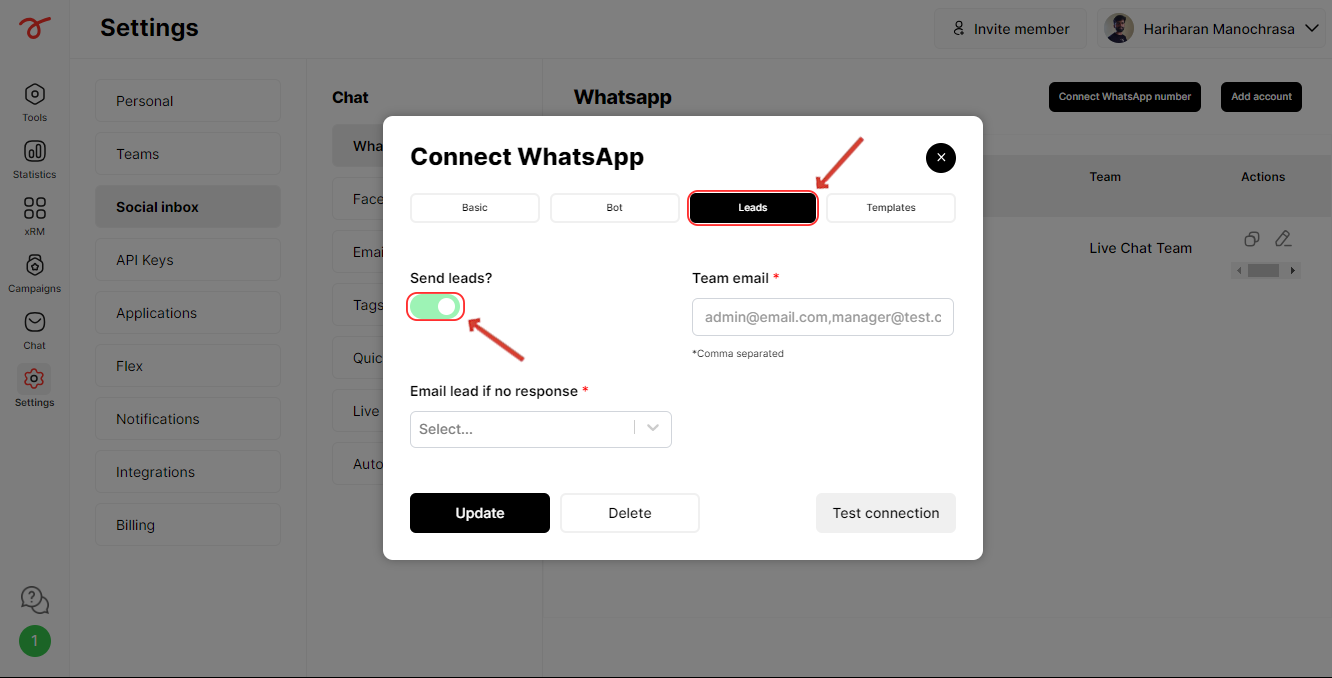
2. Enter the E-mail addresses to which you want the leads to be sent and specify the time duration for sending the leads if none of the live agents join the chat.
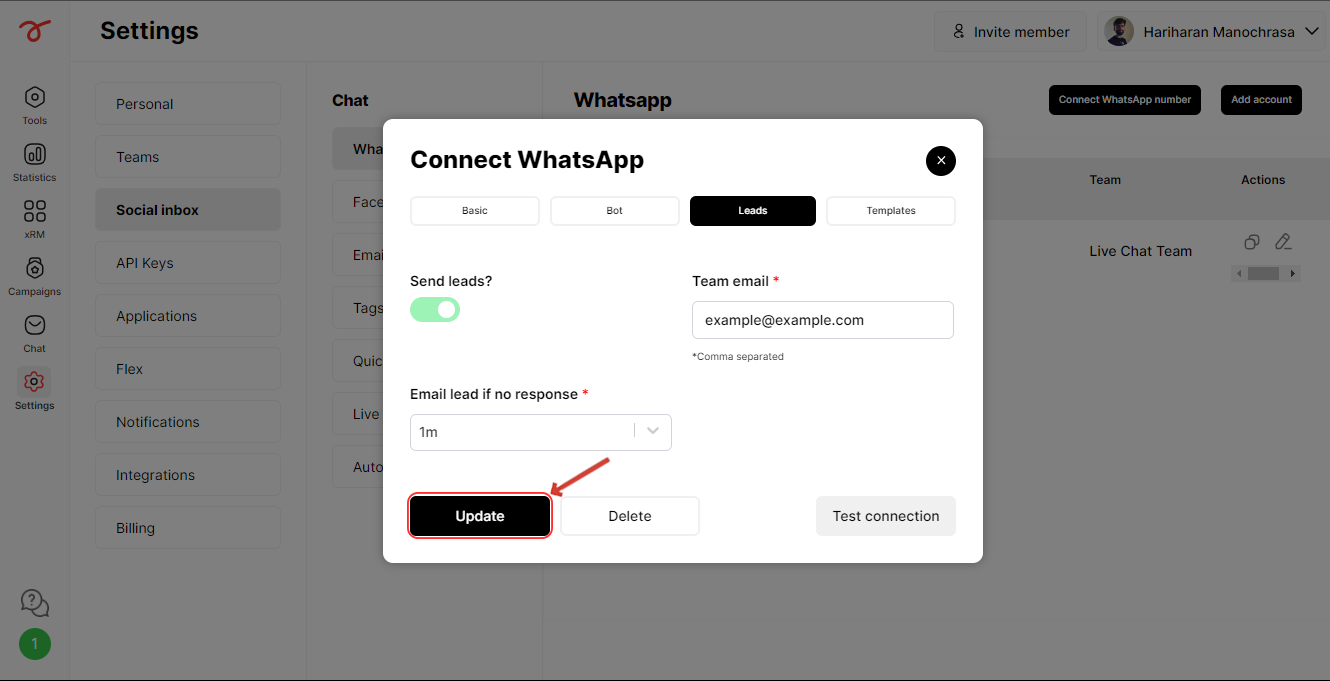
3. Click on update once done.
Blocking numbers on WhatsApp
You can block unwanted WhatsApp numbers in Social Inbox to prevent messages from them.
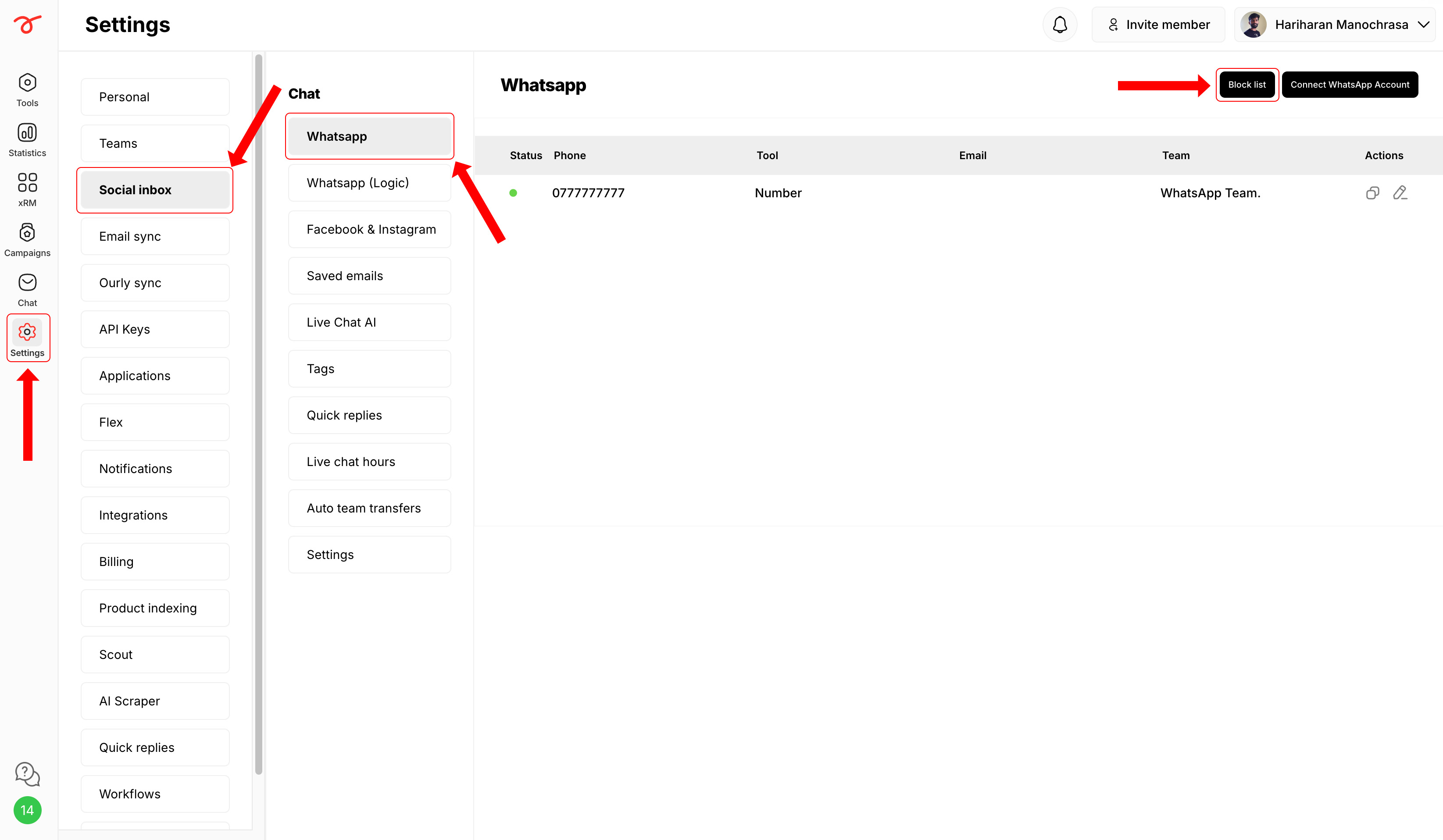
1. Go to Settings -> Social Inbox -> WhatsApp and click on Block list.
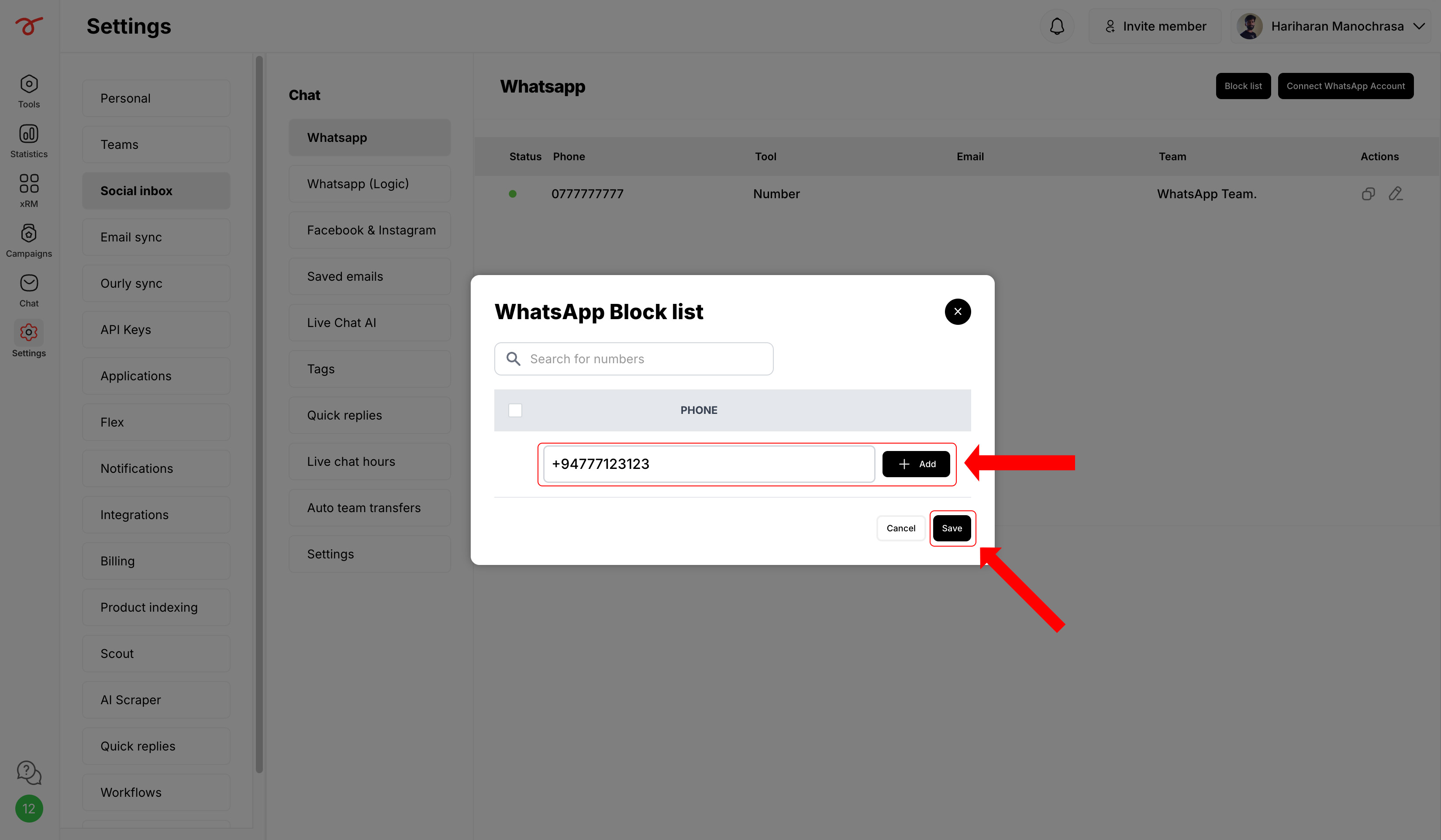
2. Enter the phone number, including the + sign and country code. Click on + Add and Save.
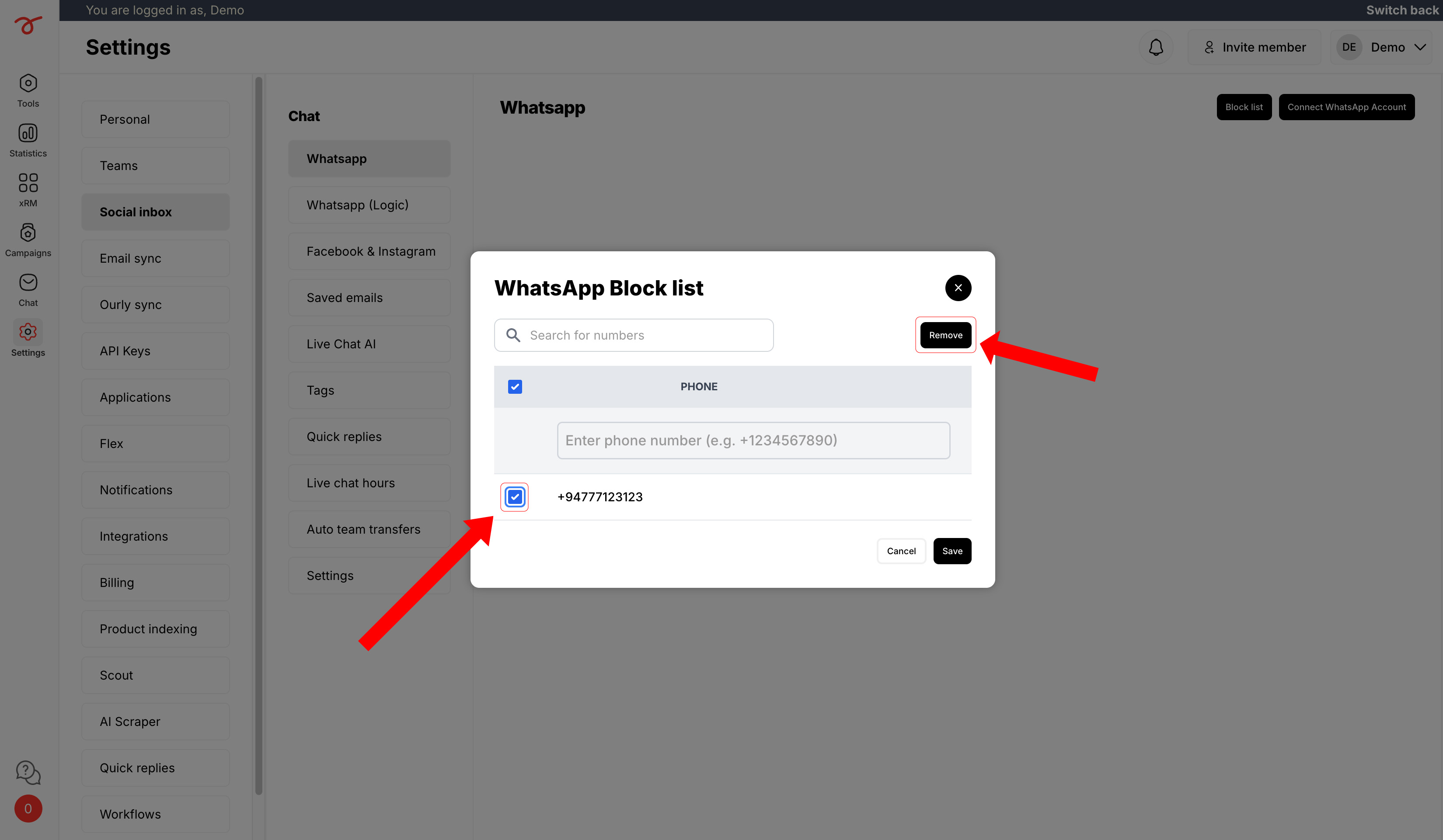
In order to unblock a number,
1. Select the number you want to unblock and click on Remove.
• Blocking a number does not prevent you from sending messages or campaigns to them, they will still receive them. However, they won’t be able to interact with the bot, and if they reply, their messages won’t appear in your Social Inbox.
• Blocking applies to all WhatsApp accounts linked to your device, not just a single account.
By following these steps, you can make sure that your customers have a good experience in these touch points to generate more leads.
Check out the next article to learn about creating WhatsApp template messages.
Related articles
- WhatsApp for business Learn how to setup and configure WhatsApp Business with Serviceform.
- WhatsApp Bot Learn how to create a WhatsApp bot to answer customer queries simultaneously.
- WhatsApp Meta account Learn how to setup and configure Serviceform's WhatsApp for Business.
- WhatsApp Embedded Signup Quickly connect your WhatsApp Business account to Serviceform.