




Dynamic form
This article will help you get started with forms.
Creating a basic Dynamic form
Start by simply creating a Serviceform account and follow the steps below:
1. Log into your Serviceform account, click on Tools -> Add a tool -> Dynamic form. Name your tool, select your language and click on Create.
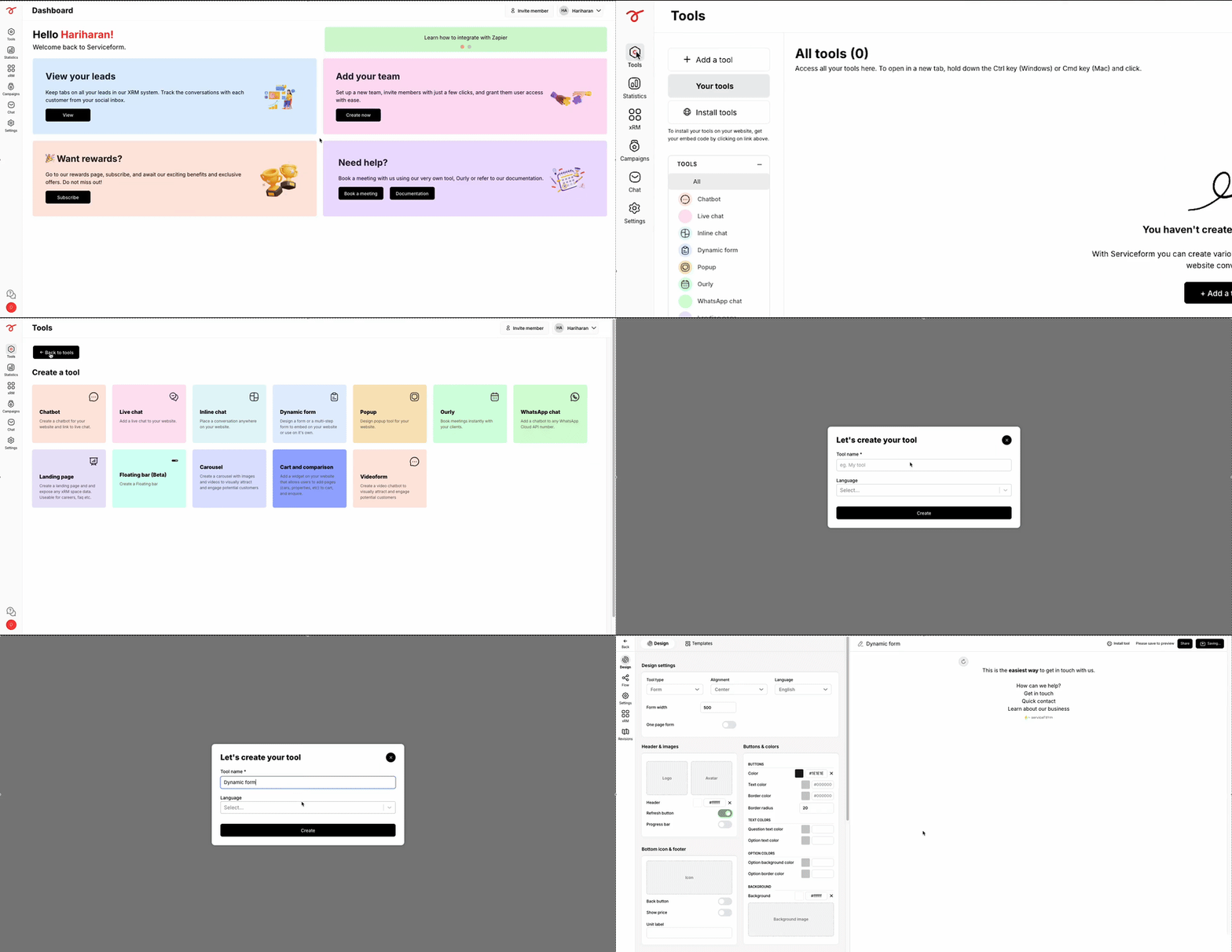
When you create the dynamic form, the tool builder appears. You should be able to find the following tabs on the left pane:
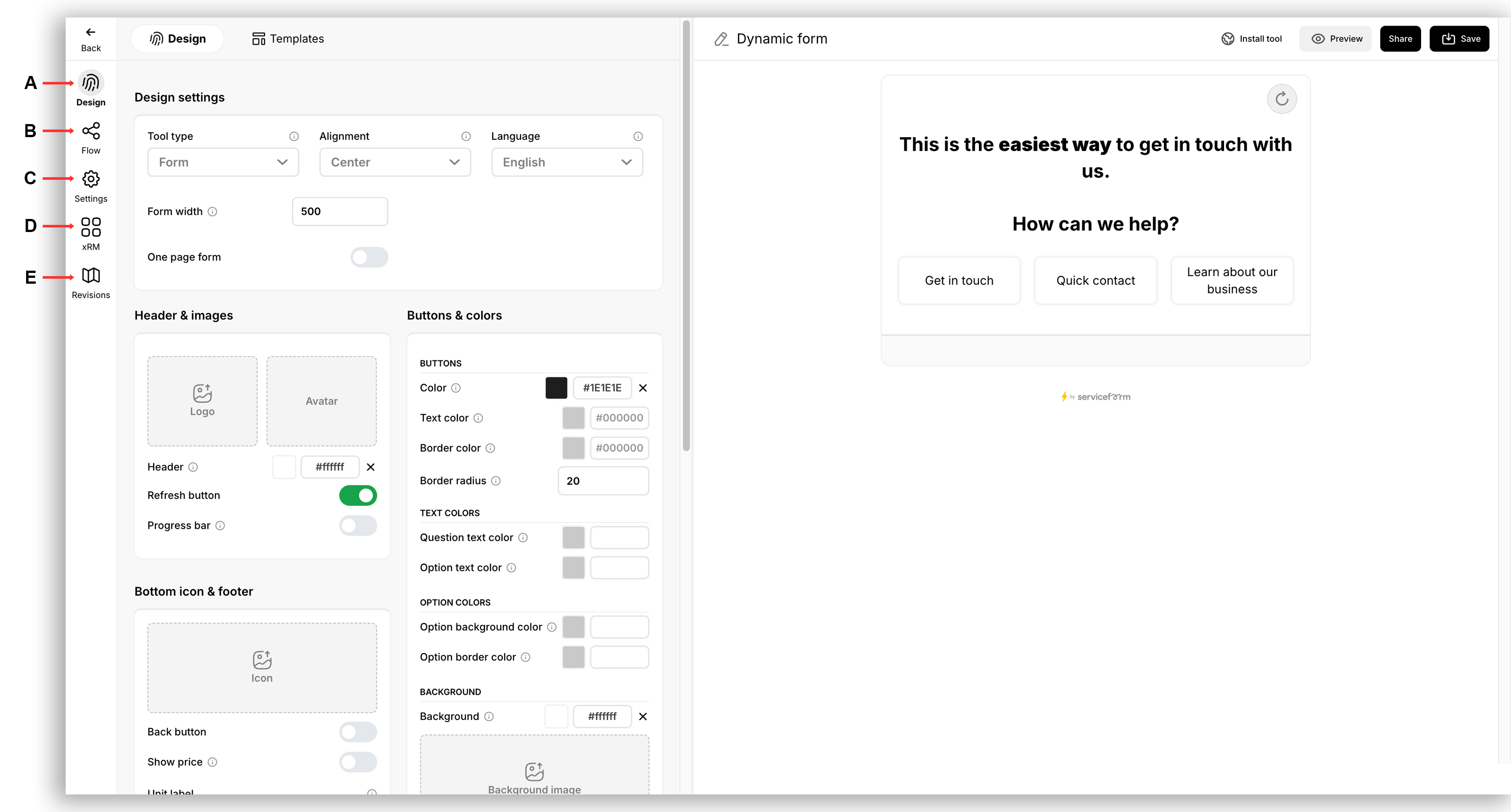
• Design (A) : This tab has the configurations for the dynamic form’s design.
• Flow (B) : This tab would allow you to modify and add questions into the conversational flow.
• Settings (C) : This tab would have the settings related to the Email notifications, integrations, dynamic elements, etc.
• xRM (D) : This tab would allows you to map the leads submitted via the dynamic form into any space in your xRM (Flex).
• Revisions (E) : This tab would contain the history of the revisions made to your tool.
On the top right corner, you can find the following buttons:
• Save : Click this button to save your tool.
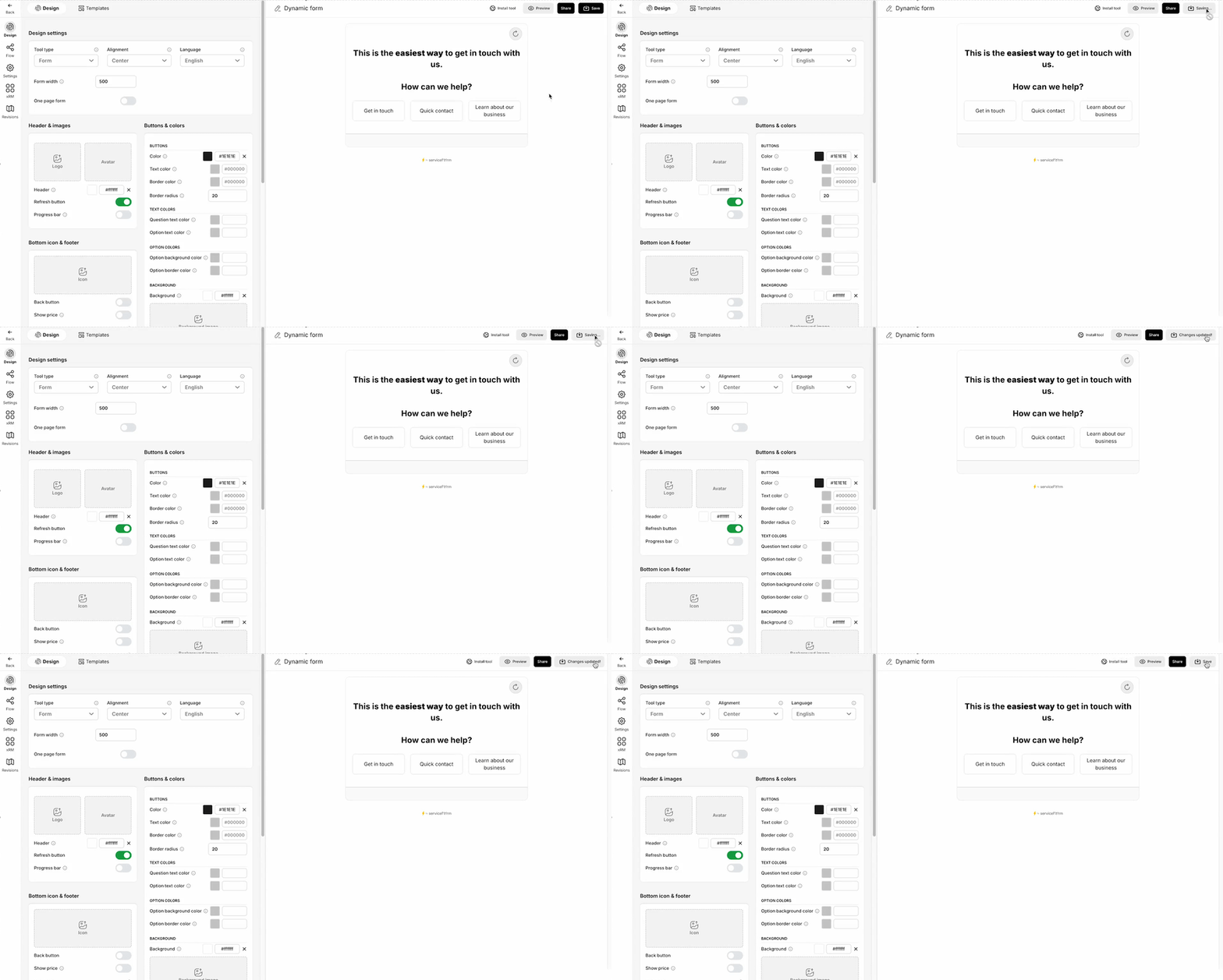
• Preview : Click this button to preview your tool. Make sure to save your changes in order to preview.

• Share : Click this button to get the preview link and/ or share your tools on social media.

Now, you would have a basic understanding about the tool builder interface. Refer to the next article to know about designing the dynamic form!