




User roles and permissions
This article will help you understand different permissions and access levels of the user roles.
Serviceform offers different user roles to help manage permissions and access within the platform.
Each role has specific capabilities, ensuring that users have the appropriate level of access to manage and monitor various features, such as Live Chat, team statistics, and more.
The user roles are as follows,
• Admin (Highest level of access)
• Master
• User
• Viewer
• Live chat
• Ourly
User permission levels
| User role | Use Livechat | See team statistics | Invite users | See all statistics | Create, edit, install tools | WhatsApp Campaigns | Ourly Tools and Statistics |
|---|---|---|---|---|---|---|---|
| Admin | X | X | X | X | X | X | X |
| Master | X | X | X | X | X | X | X |
| User | X | X | X | X | X | ||
| Viewer | X | X | |||||
| LIVECHAT | X | ||||||
| Ourly | X |
Assigning user roles via invitation
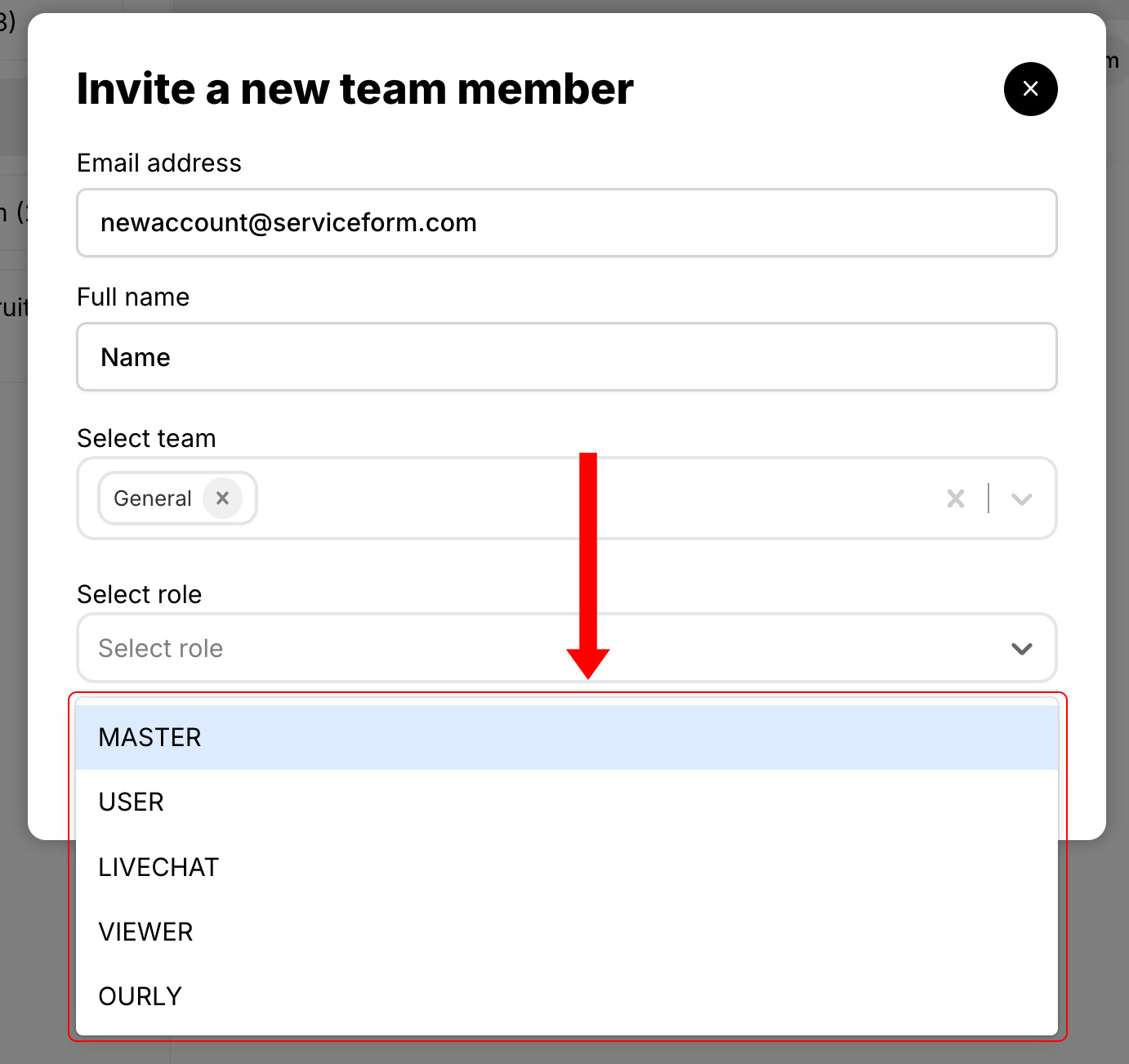
When inviting a new user, you can assign them a specific role that defines their permissions.
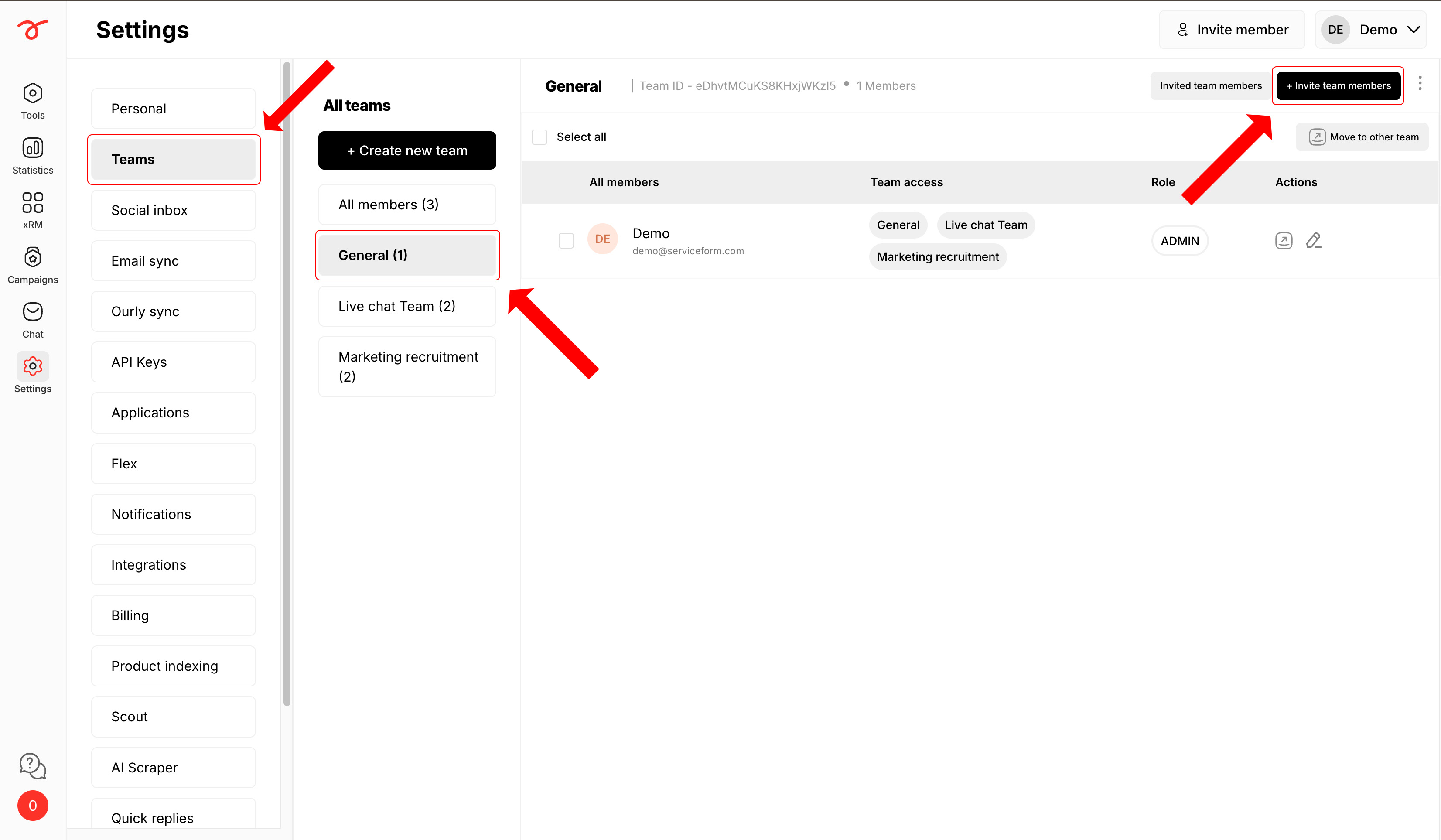
1. Navigate to the settings, select Teams -> General and click Invite team members.
2. Fill in the required details and select your appropriate user role for the new team member. Click on Send invitation.
Overriding/ Removing permissions
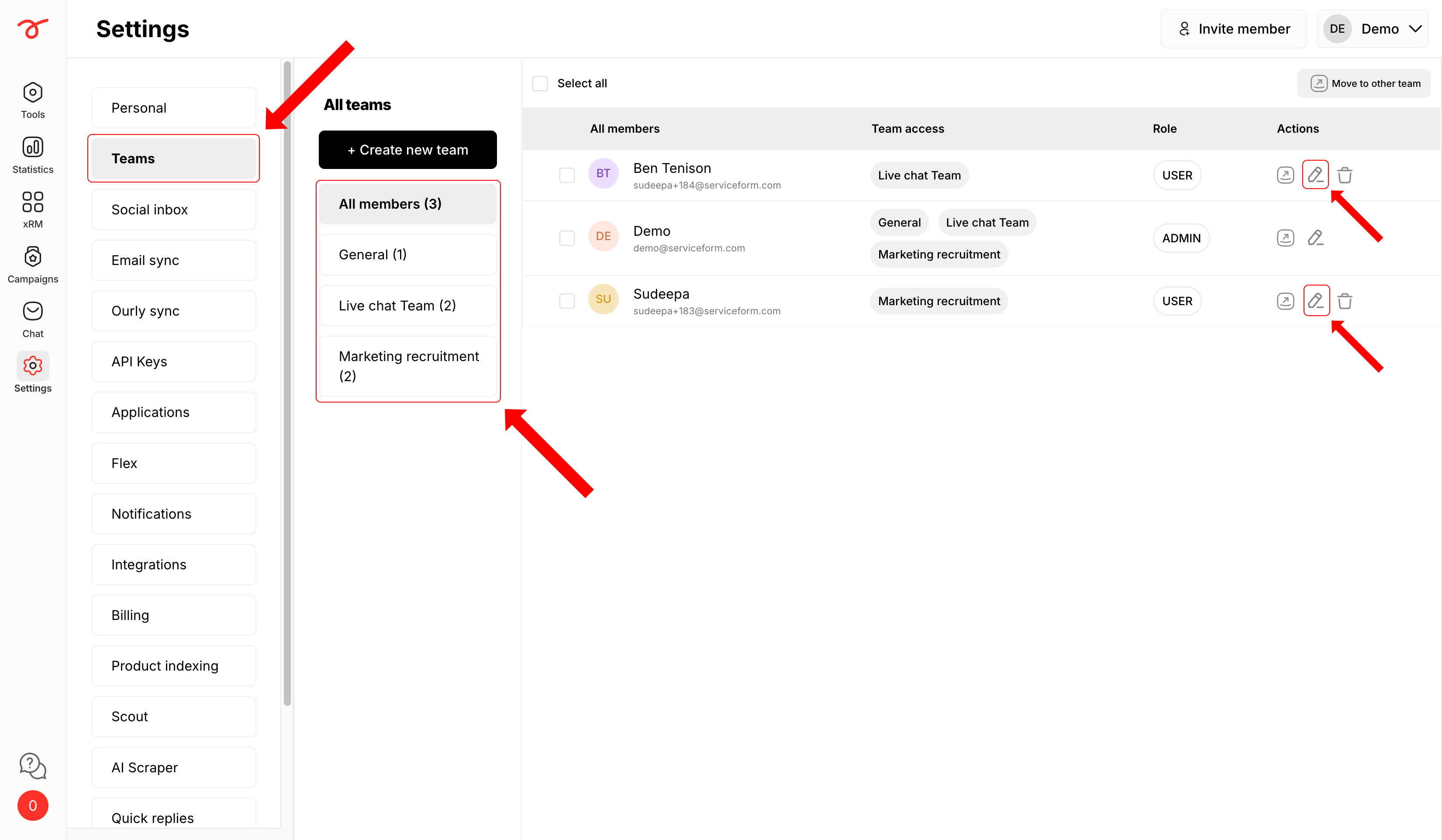
Admins can change a user’s access at any time if their responsibilities shift.
1. Navigate to settings, select Teams and click on the edit icon of the particular user.
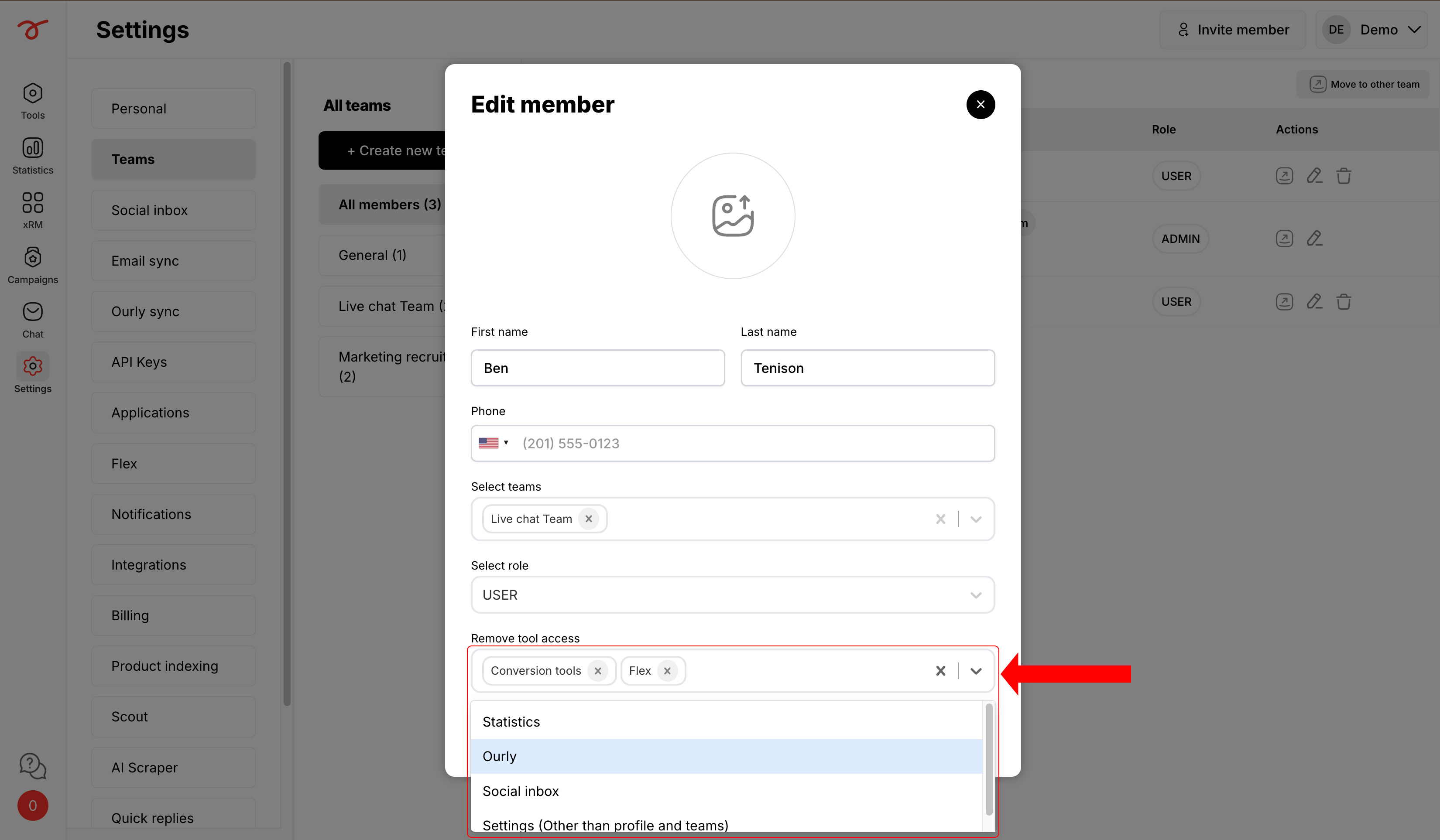
2. Remove the access to specific areas of the dashboard as required and click on Save.
Note
• Admin account should not be deleted as it affects the tools and other accounts.
• New users can be added by sending an invitation.