




Creating a chatbot
In just 5 minutes, you can have your very own chatbot up and running with the help of Serviceform's drag-and-drop, no-code chatbot builder.
Building a chatbot
Follow these simple steps to create your chatbot:
1. Go to the Tools page and click on Chat.
2. Next, click on Design to customize the appearance of the chatbot.
3. Head over to the Flow page to set up the chatbot’s flow and interactions.
4. Once you’re satisfied with the edits and customisation, click Save.
Please refer to the visual guide below If you wish to read the instructions in detail
1. Log in to your account and access the left side panel. From the panel, click on Tools.
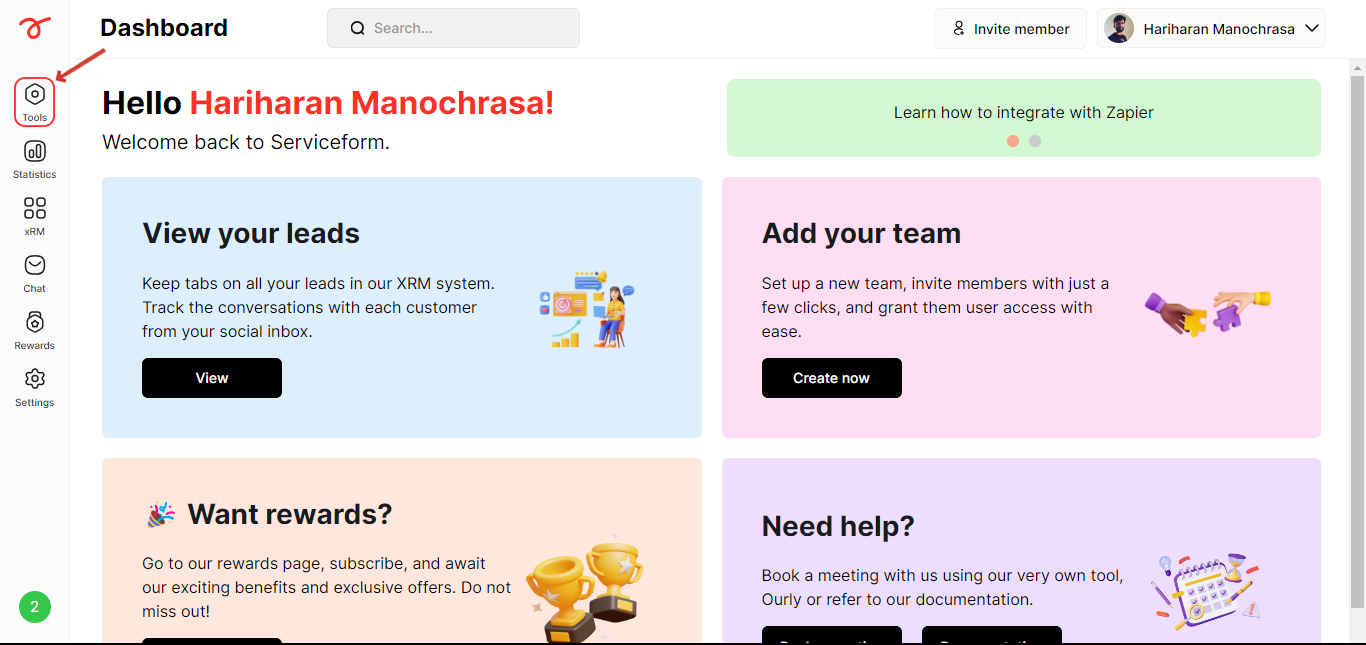
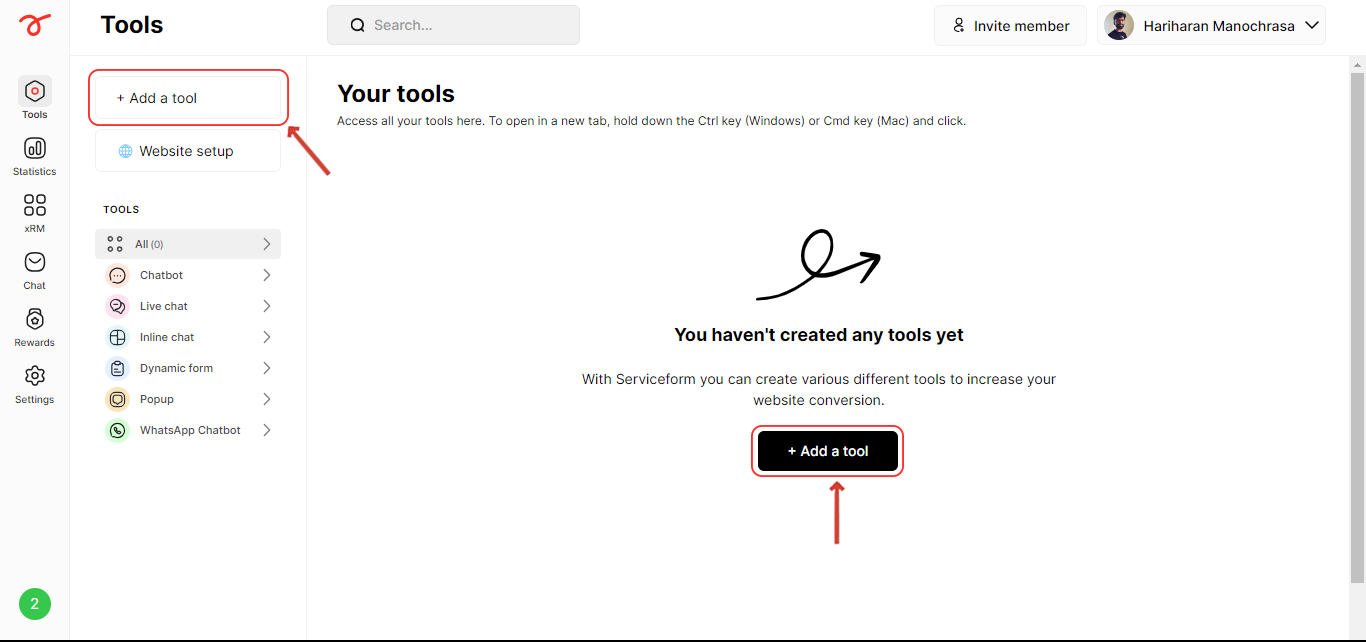
2. Once on the Tools page, click on Add a tool.
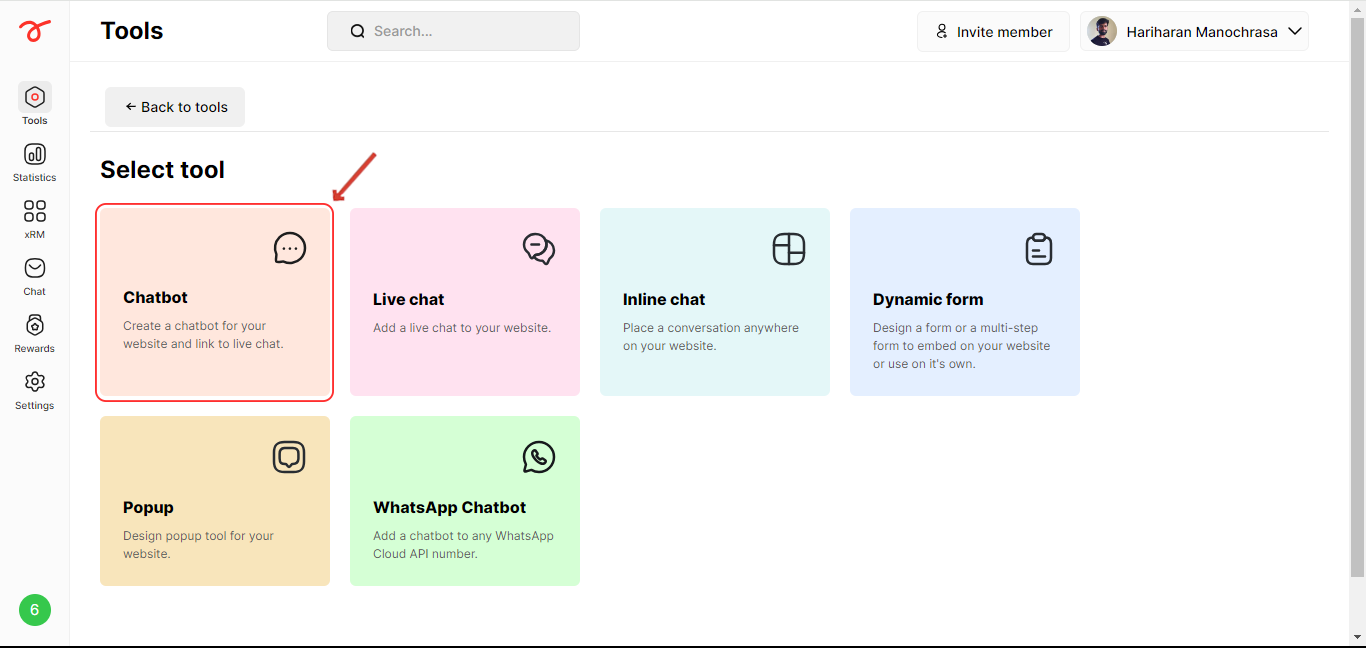
3. Choose ChatBot.
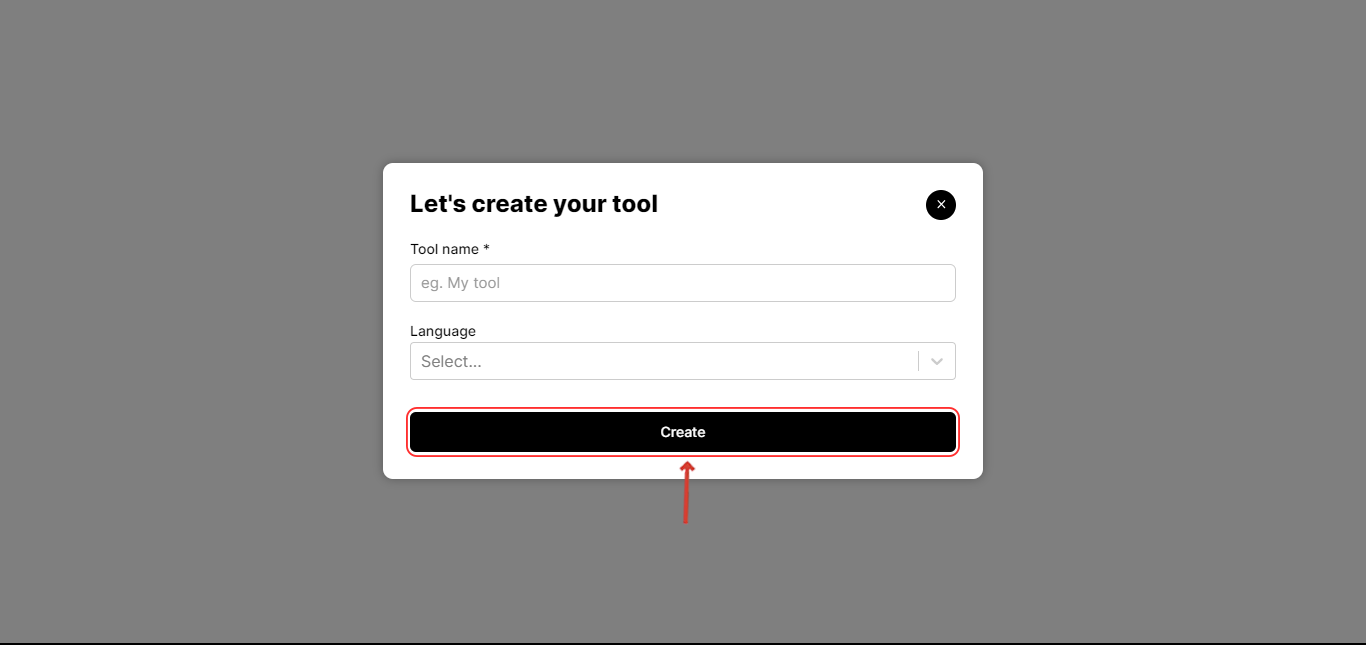
4. Enter the Name for your chatbot, choose your preferred language, and click on Create.
5. Now, you’ll find yourself within the chatbot builder interface, where you can start creating your chatbot. Let your creativity flow and personalize your chatbot to your liking. Click on Save to preview the chatbot.
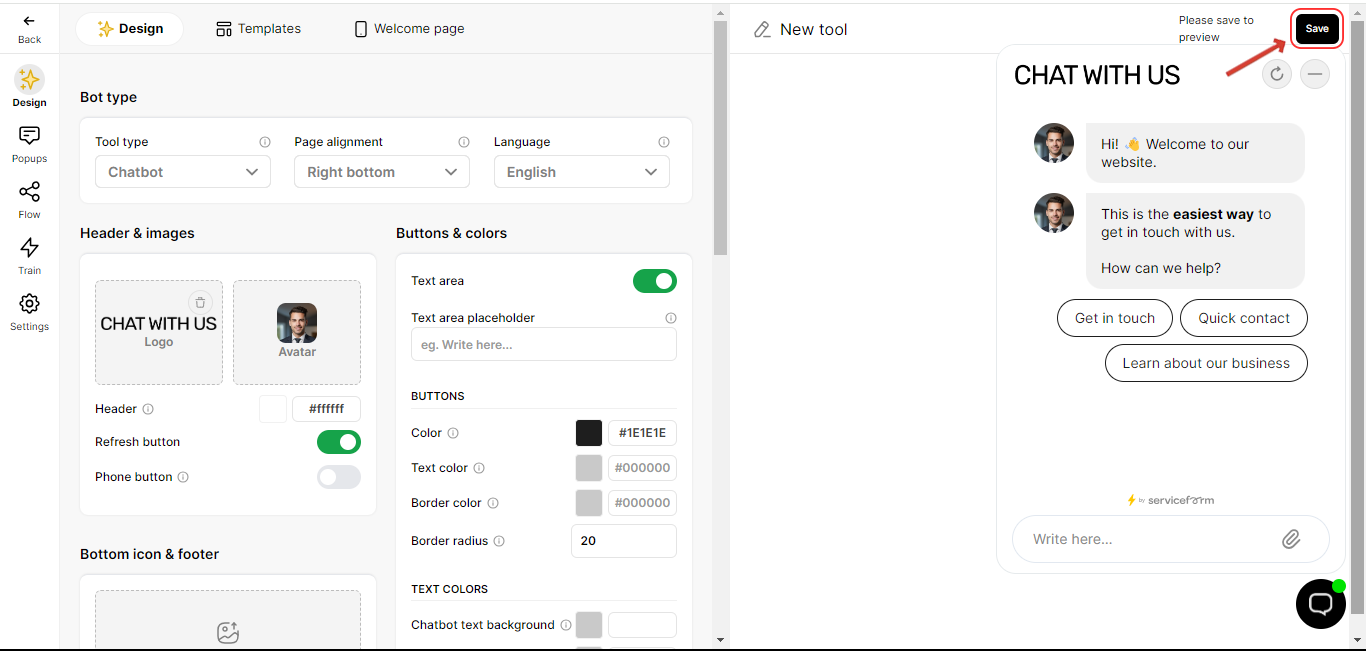
- Note that previewing the chatbot in mobile view using your computer’s browser is not possible. You’ll be able to see it only after it’s installed and live on mobile devices.
- If you need help, click on the Start tour button for a simple walkthrough of the builder.
- Also, each button in the interface has a helpful tooltip that explains what it does, so you’ll have an idea of its functionality.
- On the left side of the panel, click on the Flow button to access the page where you can add questions and customize settings according to your preference.
- You have the flexibility to include different elements like statements, jump flows, multiple-choice questions, and more to make your chatbot interactive.
- To see a visual representation of the flow you’re creating, click on the Flow map.
- Once you’re satisfied with your chatbot design, don’t forget to click Save to save your progress.
Congratulations! You’ve successfully built your first chatbot. Keep exploring and building more amazing bots. Also, do not forget to install the tools on your Website. Happy bot-building :)
Related articles
- Design the Chatbot This section guides you through customizing your chatbot's interface. Optimize design elements for a user-friendly experience with detailed instructions and visuals.
- Customize the Welcome page The welcome page is the initial interaction point for users engaging with your chatbot.
- Pop up design Learn how to configure the Pop up of your Chatbot.
- Chatbot flow Learn how to customize and add elements into the flow.